

Grade Entry
Grade Entry Details
October 2025 Grade Entry
Fall mid-term grade entry will open on Tuesday, October 14. Mid-term grades must be entered in Banner Self-service for all courses that meet from September to December.
October grades for full year courses (September-April) may be entered in Kwe' (Moodle) or communicated to students confidentially.
The deadline for mid-term grade submission is 9:00am Monday, October 27.
- Grades are entered out of 100, the highest grade possible is 99.
- Do not leave the grade blank.
- If a student is registered in your class, but has not attended, please report the name and ID number to the applicable Dean’s Office.
- Grades can be entered by the designated primary instructor if the course is shared.
- Once the grades are entered, they can be verified by viewing the class list on Faculty X-Reports.
- Students are able to view their grades as soon as they are submitted.
Documentation on how to enter grades is available below and from the Registrar’s Office at @email or 2160.
December 2025 Grade Entry
December grades are due by 9:00am Monday, December 22, 2025. Grade entry will open on Monday, December 8.
Only primary instructors as coded in Banner can enter grades.
Grade-to Date: If a student has outstanding coursework, such as assignments or papers, that counts towards their final grade, enter a grade-to-date with the outstanding coursework counted a zero. If you permit the student to submit this coursework late and that submission results in a change to the final grade, submit the Grade Change Request form in Faculty X Reports. If a student misses an exam and does not have an IN grade, enter a grade-to-date with the exam counted as zero. The student is responsible for contacting the professor to arrange a make-up exam. Do not leave the grade blank.
IN Incomplete: At the Dean’s request, this temporary grade is entered by the Registrar’s Office for students who have medical or personal reasons for missing an exam. Use the Request to Change a Grade form on Faculty X Reports to indicate either:
a) the grade after a make-up exam is completed, or
b) a grade-to-date if a make-up exam is not completed by Friday, January 9, 2026.
The Registrar’s Office will post final grades to students’ academic history daily.
Once final grades are posted to academic history, they are viewable by students. You are requested to retain, for one year, any notes on students’ performance as well as any relevant grading material that is not returned to students. These may be used in the event of a grade appeal.
Grade entry assistance is available below and from the Registrar's Office at @email or 2160.
February 2026 Grade Entry
Fall mid-term grade entry will open on Tuesday, February 17, 2026. Mid-term grades must be entered in Banner Self-service for all courses that meet from January to April.
The deadline for mid-term grade submission is 9:00am Monday, March 2.
- Grades are entered out of 100, the highest grade possible is 99.
- Do not leave the grade blank.
- If a student is registered in your class, but has not attended, please report the name and ID number to the applicable Dean’s Office.
- Grades can be entered by the designated primary instructor if the course is shared.
- Students are able to view their grades as soon as they are submitted.
Documentation on how to enter grades is available below and from the Registrar’s Office at @email or 2160.
May 2025 Grade Entry
Grades for graduation candidates are due by 9:00 am Monday, April 27, 2026. Grade entry will open on April 9, the first day of the examination period.
A “Yes” in the “GRAD” column of the Faculty X-Reports class list indicates that a student is a candidate for graduation at the upcoming spring convocation. It is imperative that all grades are entered by this deadline to allow sufficient time to process awards and determine distinctions and first class honours.
Grades for continuing students are due by 9:00 am on Monday, May 4, 2026.
Only primary instructors as coded in Banner can enter grades for their courses.
Grade-to Date: If a student has outstanding coursework, such as assignments or papers, that counts towards their final grade, enter a grade-to-date with the outstanding coursework counted a zero. If you permit the student to submit this coursework late and that submission results in a change to the final grade, submit the Grade Change Request form in Faculty X-Reports. If a student misses an exam and does not have an IN grade, enter a grade-to-date with the exam counted as zero. Do not leave the grade blank.
IN Incomplete: At the Dean’s request, this temporary grade is entered by the Registrar’s Office for students who have medical or personal reasons for missing an exam. Use the Request to Change a Grade form on Faculty X-Reports to indicate either:
a) the grade after a make-up exam is completed, or
b) a grade-to-date if a make-up exam is not completed by Friday, May 1, 2026. The student is responsible for contacting the professor to arrange a makeup exam.
The Registrar’s Office will post grades to students’ academic history daily beginning Thursday, April 9.
Once grades are posted to academic history, they are viewable by students. You are requested to retain, for one year, any notes on students’ performance as well as any relevant grading material that is not returned to students. These may be used in the event of a grade appeal.
Grade entry assistance is available below and from the Registrar's Office at @email or 2160.
How to:
Enter Registration Error Overrides
How Faculty Override Registration Errors
Professors can override the following registration errors for students wishing to register in a course to which they are assigned:
- Course is closed (enrollment is at the maximum specified).
- The student does not have the required pre-requisite(s) for the course, but the chair and professor are willing to allow the student to register in the course.
- Student is taking the course without the normal co-requisite, usually a lab. A student may have taken CHEM 100 in a previous year and failed the course but passed the lab. The chair or professor has decided the student may repeat the course and does not need to repeat the lab.
- Course is normally restricted by College (in banner, this means Faculty). For example, CSCI 100 is restricted to students in Arts and Business (Colleges AR and BU), but a student in Science (SC) may be permitted to register for the course.
- Course is restricted by Degree. For example, only students in the HKIN degrees may take HKIN courses. A student in BSc HNU may request permission to take HKIN 226, Personal Health and Wellness, and receives permission to do so.
- Course is restricted by Major. Same scenario as above, but rarely used.
Professors will receive an Override Approval form from the student and will:
- Select the Banner Self-Service (Faculty) link here.
- Log in with your StFX email and password.
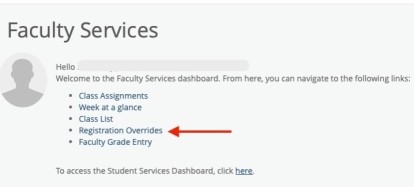
- Select Registration Overrides from the Faculty Services menu.
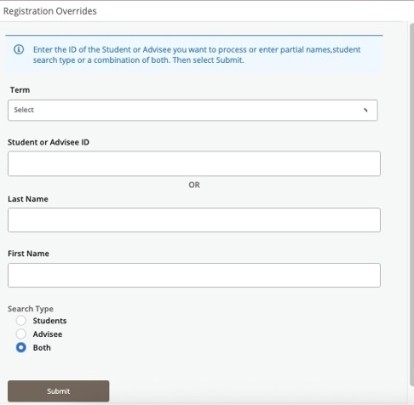
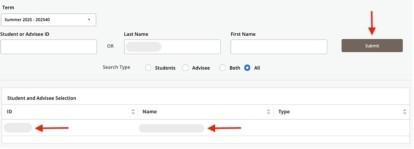
Select the correct term Term and enter Student or Advisee ID or Last Name and First Name and click on the Submit button.

A list of matching students will appear. Find the correct student and click on their Name or ID.

If the student is not eligible for registration overrides, a message will display.
On the Registration Overrides page, choose the appropriate override and the applicable course, and then click on the Submit button.
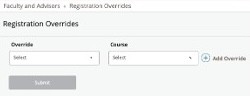
You can also click the plus (+) button to add more Override and Course fields.
NOTES:
- Professors may override more than one registration error for a student, for example, Enrollment Cap plus Pre-Requisite. Repeat the steps listed above to add another override for the student.
- Once entered, overrides can only be removed through the Banner forms, either by departmental secretaries or the Registrar’s Office.
Enter Grades
View a step-by-step guide: Banner Self-Service Grade Entry Instructions
Access Banner Self-Service and here. IT Services recommends using Firefox or Google Chrome.
Contact
2nd Floor Nicholson Tower
2329 Notre Dame Avenue
Antigonish NS B2G 2W5
Canada